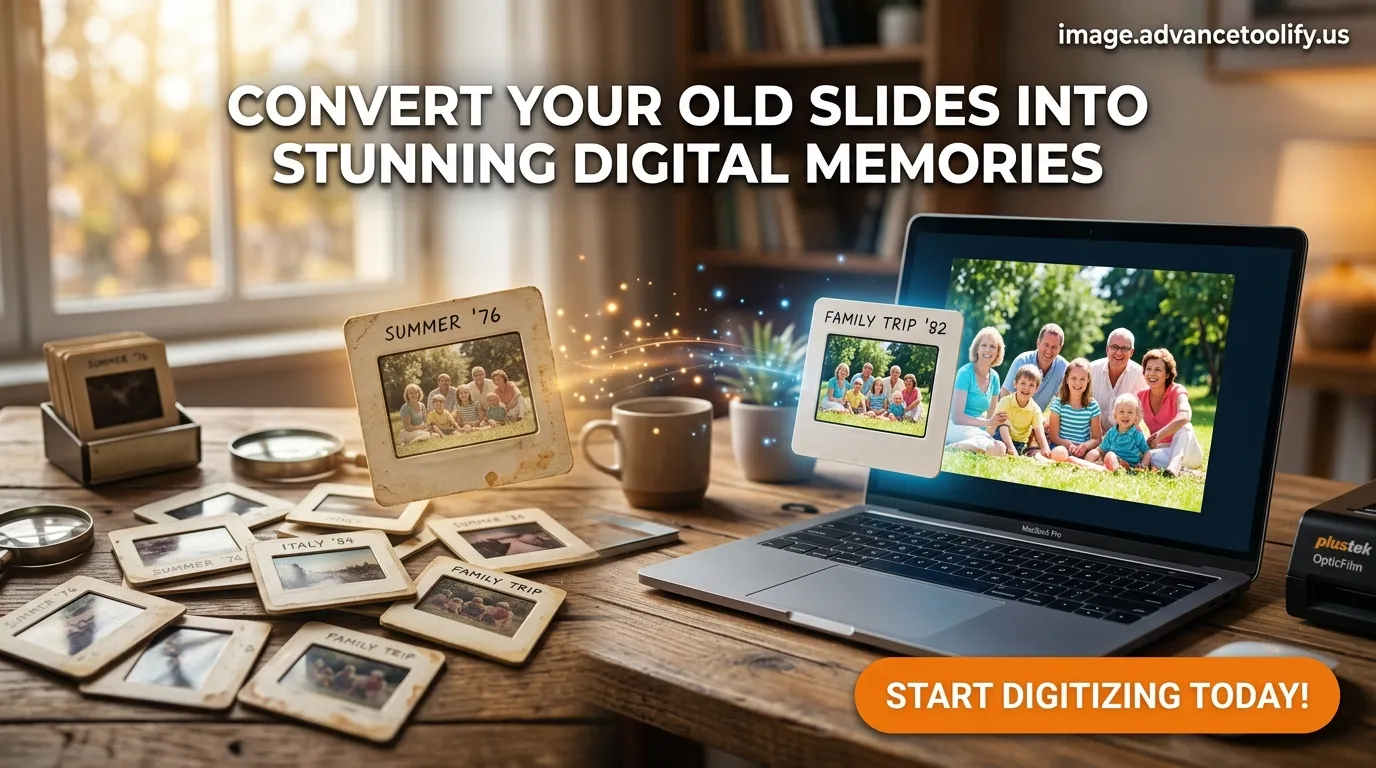
If you’re wondering how to convert slides to digital images, you’re not alone. Thousands of people are rediscovering old 35mm slides tucked away in boxes, attics, and family albums. These tiny frames hold priceless memories—but they won’t last forever.
Film fades. Colors shift. Mold grows. Projectors break.
The good news? Converting slides to digital images is easier than ever. Whether you want professional-quality scans or a simple DIY solution, this complete guide walks you through everything you need to know.
Let’s dive in.
Why Convert Slides to Digital Images?
Before learning how to convert slides to digital images, it helps to understand why it matters.
1. Preserve Fading Memories
Film slides degrade over time. Heat, humidity, and light exposure cause:
- Color fading
- Yellowing
- Cracks
- Fungus damage
Digitizing them protects your memories forever.
2. Easy Sharing with Family
Once digitized, you can:
- Share via email
- Post on social media
- Create photo books
- Store in the cloud
No more dusty projectors required!
3. Save Physical Space
Thousands of slides can fit on:
- A USB drive
- External hard drive
- Cloud storage
That’s powerful storage efficiency.
Understanding Film Slides Before Digitizing
To properly understand how to convert slides to digital images, you need to know what type of slides you have.
Common Slide Formats
Most common types include:
- 35mm slides (most popular)
- Kodachrome slides
- Ektachrome slides
- Mounted transparencies
If you’re unsure, check the frame size. Most are 2×2 inches.
Method 1: Using a Dedicated Slide Scanner (Best Quality Option)
The most reliable answer to how to convert slides to digital images is using a slide scanner.
How It Works
- Insert slide into scanner
- Choose resolution (2400–6400 DPI recommended)
- Scan
- Save as JPEG or TIFF
Best For:
- Large collections
- High-quality archiving
- Professional printing
Pros
✔ Excellent image clarity
✔ True color reproduction
✔ Long-term archival quality
Cons
✘ Slower process
✘ Equipment cost
If quality matters most, this is your best option.
Method 2: Using a Flatbed Scanner with Transparency Adapter
Many modern flatbed scanners include a film adapter.
Steps
- Place slide on transparency tray
- Close lid carefully
- Scan at high DPI
- Adjust color in editing software
Ideal For
- Budget-friendly digitizing
- Moderate collections
This method gives solid results without buying specialized equipment.
Method 3: Using a DSLR or Mirrorless Camera (Advanced DIY Method)
If you own a DSLR, this is one of the fastest answers to how to convert slides to digital images.
You’ll Need
- DSLR or mirrorless camera
- Macro lens
- Lightbox
- Slide holder
- Tripod
Process
- Place slide on lightbox
- Mount camera directly above
- Shoot in RAW format
- Flip and edit digitally
Why It’s Great
✔ Extremely fast
✔ High resolution
✔ Full control over exposure
This method is popular among photographers digitizing thousands of slides.
Method 4: Using a Smartphone (Quick & Simple Option
Yes—you can use your phone!
What You Need
- Smartphone
- Light source
- Slide holder
- Scanning app
Best For
- Small collections
- Casual sharing
- Quick previews
While quality isn’t professional-level, it works surprisingly well.
Method 5: Hiring a Professional Slide Digitizing Service
If you have hundreds (or thousands) of slides, outsourcing might be smart.
Professional services:
- Clean slides
- Scan at high resolution
- Color correct
- Remove dust digitally
Look for companies with:
- 3000+ DPI scanning
- TIFF file option
- Secure handling
This option saves time and ensures quality.
Recommended Resolution Settings
When learning how to convert slides to digital images, resolution matters.
| Purpose | Recommended DPI |
| Social Media | 1200–2400 DPI |
| Photo Books | 2400–3200 DPI |
| Large Prints | 4000–6400 DPI |
| Archival Storage | 4000+ DPI |
Higher DPI = larger file size but better detail.
Cleaning Slides Before Scanning
Never skip this step!
Use:
- Microfiber cloth
- Compressed air
- Anti-static brush
Avoid water or household cleaners.
Dust shows up clearly in digital scans—clean first!
Editing After Conversion
Even the best scans need slight adjustments.
Use editing tools to:
- Correct color fading
- Adjust contrast
- Crop borders
- Remove scratches
Popular editing software includes:
- Adobe Lightroom
- Photoshop
- Free alternatives like GIMP
For more photo restoration guidance, visit:
https://www.digitalphotomentor.com
Best File Formats for Digital Slides
Choose wisely.
JPEG
- Smaller size
- Easy sharing
- Slight compression
TIFF
- No compression
- Archival quality
- Larger file size
For long-term storage, TIFF is best.
How Long Does It Take to Convert Slides?
Time depends on method:
- Slide scanner: 2–4 minutes per slide
- DSLR method: 30 seconds per slide
- Professional service: 1–3 weeks turnaround
Large collections require patience—but it’s worth it.
Common Mistakes to Avoid
When figuring out how to convert slides to digital images, avoid:
❌ Scanning at low resolution
❌ Skipping cleaning
❌ Saving only in JPEG
❌ Ignoring backup copies
❌ Cropping too tightly
Backing Up Your Digital Images
Follow the 3-2-1 rule:
- 3 copies
- 2 different storage types
- 1 offsite backup (cloud)
Use:
- Google Drive
- External hard drives
- USB storage
Never rely on one device.
FAQs About How to Convert Slides to Digital Images
1. What is the best way to convert slides to digital images?
A dedicated slide scanner offers the highest quality, especially for large collections.
2. Can I use my phone to digitize slides?
Yes, with a light source and scanning app. Quality is decent for casual use.
3. What resolution should I scan slides at?
At least 2400 DPI. For archival purposes, 4000+ DPI is recommended.
4. Is it expensive to digitize slides professionally?
Costs vary. Expect $0.25–$1.00 per slide depending on resolution and services.
5. How do I fix faded slide colors?
Use photo editing software to adjust white balance, saturation, and contrast.
6. Should I keep the original slides after digitizing?
Yes. Store them in a cool, dry place as a backup.